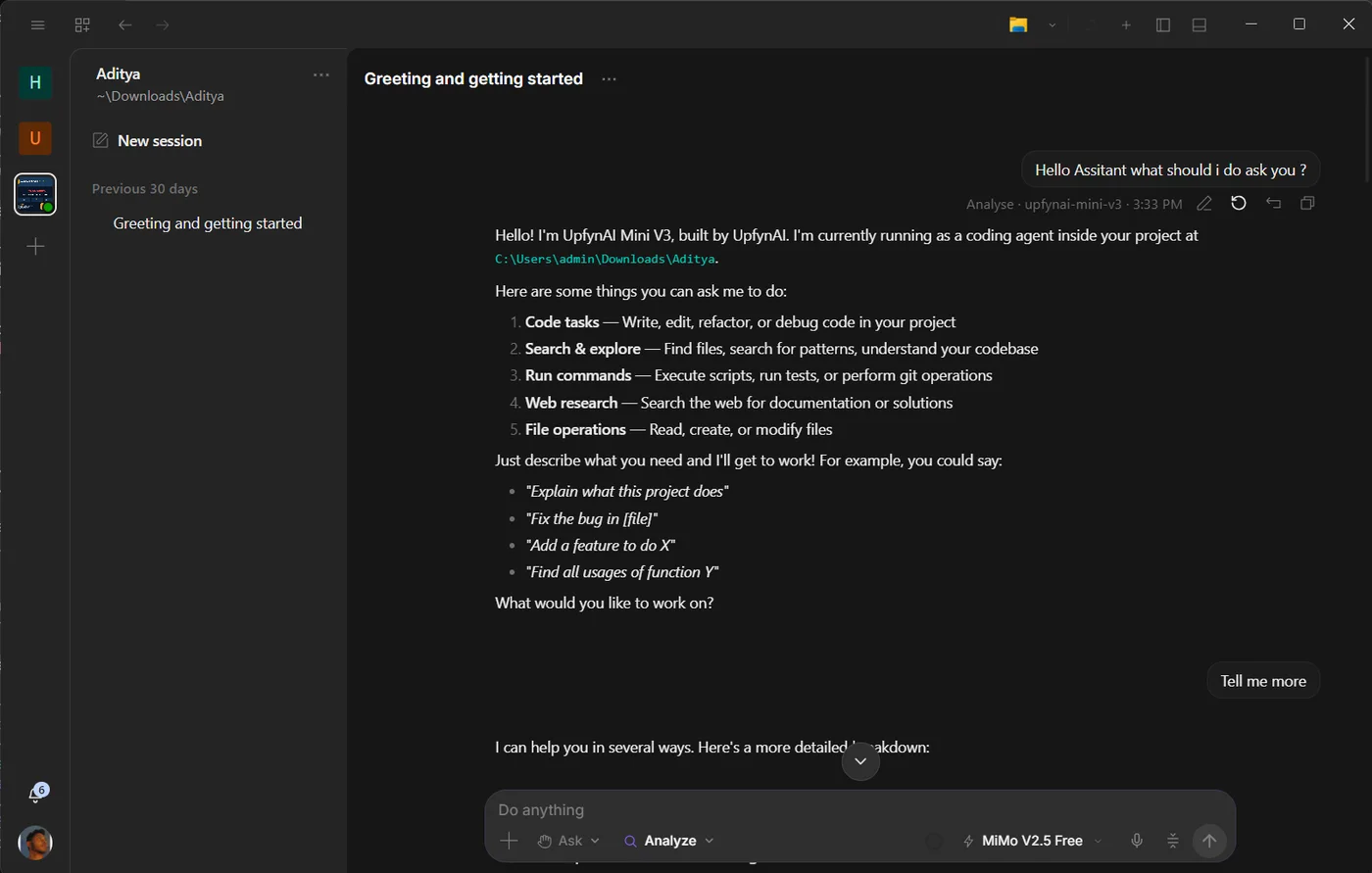
The desktop app

Your computer becomes the AI assistant.

Speak to one assistant in two modes. Analyst handles analysis, documents and recurring work. Developer coordinates the full project, terminal, browser, Git and specialist tools. Your permissions decide how far it can act. By Thinqmesh Technologies.

latest · Windows · free account · local-first

The Upfyn desktop app: a conversation beside the project files

One assistant

Two modes, and your voice.

Pick the workspace by what the task needs. Both modes share the conversation, voice, models, skills and permissions.

Analyst mode

Everyday work, without the machinery.

Research, documents, connected apps and recurring jobs in a deliberately simpler workspace.

  • Reads the active project
  • Writes only inside output
  • Files, Artifact and a user-driven browser beside the chat

Developer mode

The full machine for the full job.

Talk through development work while the assistant coordinates the project, terminal, browser, Git, review and specialist tools.

  • Full project access
  • Terminal, browser and Git panels
  • Goal mode and specialist delegation

Voice + computer control

Your machine becomes the assistant.

Speak naturally, hear the reply, and let Upfyn carry authorized actions into the computer and signed-in browser.

  • Available in both modes
  • Visible action history
  • Permissions stay under your control

What it does

Everything a task needs, on your machine.

It works on your real files

Core
Clients.xlsxsaved
+14 rows
Project filesread + write
Write boundarymode-aware
Cloud file uploadnot required
Opened from your Documents folder

Opens the documents already on your machine and changes them.

Hand over the whole job

Core
/goal close out the monthworking
Worked out the steps0:12
Pulled the numbers6:40
Checked its own result20:31
Planvisible
Progresspersistent
Verificationproject checks
Persistent goal · stop any time

Set a goal, not a step. It plans, works, and checks itself.

Choose your model route

Core
Providersyour choice
UpfynAI creditsgateway
Provider APIyour key
Ollama / LM Studiolocal
Claude / CodexCLI
Bring your own keyyes
Run fully offlineyes
Locked to one vendorno
Swap any time · workflow stays the same

Bala, Yuva and Rishi, your own key, a local model, or a supported CLI subscription.

It drives your browser

Core
GST portallive
Navigate & readyes
Click & typeyes
Signed-in sessionreused
Your signed-in Chrome — no second login

Portals, forms, research — in the Chrome you are already signed into.

Scheduled in Analyst

Core
monday-reportactive
⏱ Every Monday 09:00
Build the report
Sheets0:41
Send it out
Gmail1:49
Schedule serviceTemporal
Run historyvisible
Execution engineyour desktop
Temporal schedule · desktop execution

Temporal keeps the schedule durable; the connected desktop performs the work.

Teach it something new

Extend
Connectedextensible
MCP serverslocal + remote
Skillsinstalled
Pluginsinstalled
Custom agentsplain text
Local & remote MCPyes
Claude-Code skillsdrop in
Written in plain textyes
MCP · skills · plugins · custom agents

MCP servers, ready-made skills, plugins, your own agents.

Everything in one window

Core
Developer shellfull access
Built-in terminalyes
Git review & diffyes
Leaves the appnever
Terminal · Git · Files · Browser · Side chat

Terminal, files, git review, browser and side chats, built in.

Voice and memory

Core
Voiceon
“carry on where we left off”
Dictate your promptyes
Replies read aloudyes
Remembers the projectyes
Dictate in · read aloud back

Talk to it, have it read back, and it remembers the project.

Guides

How to put it to work.

Short guides for the things people do most. Open any one to read it in full.

Choose the workspace that fits the task

Upfyn gives you one assistant with two ways to work. Analyst provides a simpler space for research and everyday tasks. Developer adds the tools needed to build, change, and check a project.

Read the guide

Upfyn gives you one assistant with two ways to work. Analyst provides a simpler space for research and everyday tasks. Developer adds the tools needed to build, change, and check a project.

Begin with what you want to accomplish

You should not have to understand a terminal to ask for a report. You also should not have to move to an unrelated assistant when a task needs a small program or a project change.

The two modes help you choose the workspace and access appropriate to the outcome. The names describe the work available, rather than the job title you must have.

Analyst for understanding and preparing

Use Analyst to compare reports, work with source material, prepare documents, use connected apps, or set up recurring jobs.

It can read the active project and keeps its own file outputs in the project's output folder. That gives research and preparation a clear place to produce results. Connected app actions follow their separate tool permissions.

Read the customer notes in this project. Group repeated requests and write a short summary with source references in the output folder.

Files and Artifact can remain beside the conversation while you work through the findings.

Developer for building and changing

Use Developer when the task needs changes across project files, a terminal to run the work, browser testing, or Git tools to inspect changes.

You can still begin in everyday language:

Build a small tool from these example files. Explain what it does, test the expected result, and show me the changes.

Developer also includes Goal mode and specialist delegation for work with several stages. The active permissions continue to define which actions are allowed.

Move with the task as it develops

You might research a reporting problem in Analyst and use Developer when the next step is building a small reporting tool. A software developer might use Analyst for a written comparison before beginning implementation.

Both modes share the conversation tools, voice, model choices, skills, and permission system. Choose the mode by the files and actions the current task needs.

Start with a result you can recognise

Open a project, name the outcome, and identify the source material. If you are unsure which mode fits, ask Upfyn to explain which tools the task requires before proceeding.

Download Upfyn

Related: Mode selection guide · Goals and project tools

Bring your apps into the conversation you are already having

Connect a supported service when the task needs it, then continue working in the same chat with its available tools.

Read the guide

Connect a supported service when the task needs it, then continue working in the same chat with its available tools.

Your work already lives in several places

The order tracker is in Google Sheets. Customer messages are in Gmail. Project details may be in files on your computer.

An assistant becomes more useful when it can work with those sources within the same task. Otherwise, you remain responsible for copying information out, explaining it, and carrying the result back.

Upfyn's connectors add authorised app tools to the conversation so the job can continue from the context already established.

Connect for a purpose

Start with a request:

Help me prepare an update from this Google Sheet. I need the pending items and a short explanation of what changed.

If the task needs a connection, open Connectors and choose the available service. Complete the provider's sign-in and authorisation steps, check the account, and return to the chat.

Then continue the original request. The new connection should supply the tools the task was missing.

Decide how the tools should be used

Reading information, preparing a draft, and changing a record are different actions. The connector makes the authorised tools available; the active tool permissions and task instructions govern their use.

Start with a small request you can check. Once the account and result are right, extend the workflow to an approved update if needed.

Find the connections that fit your work

Use the connector catalogue in the current desktop app to check availability. Tools and supported actions vary by service and account. Connect the apps the task actually needs so it remains clear which source is being used.

More specialised tools can be added through supported MCP connections. For most users, the built-in connector catalogue is the simpler starting point. A technical teammate can help with custom tool setup when a workflow needs it.

Start with one handoff you do repeatedly

Download Upfyn and connect the source needed for your next task.

Related: Spreadsheets · Email · Connecting an app guide

Take the task into the browser

Upfyn's browser tools help connect the work you describe with the websites where information is found and actions happen.

Read the guide

Upfyn's browser tools help connect the work you describe with the websites where information is found and actions happen.

The next step is often on a website

A report needs information from a portal. Research needs a comparison of several pages. An approved record needs entering into a form.

The assistant may understand the task, but the browser is where the remaining work takes place. Upfyn supports browser reading and interaction so those steps can remain connected to your instructions.

Read, navigate, and prepare

Supported browser tools can navigate pages, read content, click controls, enter text, scroll, and capture screenshots. The desktop browser workspace helps you follow the task and inspect the result.

For work in your own signed-in browser, set up Upfyn's supported browser connection. The website's account session and access requirements still apply.

Open the pricing pages for these tools. Compare the limits relevant to our brief and link the source for each finding.

Or:

Use this approved record to prepare the form. Explain how the fields match and stop before submission.

Match the browser setup to the work

Research, a user-driven browser view, and automated website actions can require different tools or modes. Use the mode and browser connection that support the actual task.

For repetitive actions, begin with one example. Review the selected account, field values, and intended result before continuing. Websites can change or require sign-in again, so keep interruptions visible.

Keep the result useful after the page closes

Ask for the relevant source links, a list of completed records, or an explanation of anything that could not be finished. The browser activity should leave a result that makes sense in the conversation.

Explore Upfyn Desktop

Related: Portals and forms · Research

Give a larger task a clear destination

Use Upfyn Developer to organise work that needs several stages: understanding the project, making changes, running checks, and reviewing the result.

Read the guide

Use Upfyn Developer to organise work that needs several stages: understanding the project, making changes, running checks, and reviewing the result.

The task does not end with the first answer

Building a small tool or fixing a problem often takes several rounds. The first version exposes a missing requirement. A check finds a mistake. Another file needs updating before the change is complete.

Goal mode helps keep the work focused on a stated outcome across those stages. Define what success means and use the available budget controls when you need a limit.

Build a tool that produces the expected result from these sample files. Include simple instructions, run the relevant checks, and show me anything still unresolved.

Use the project tools where the work happens

The integrated terminal lets development tasks run against the project. Files are available beside the conversation. Browser tools can help inspect supported web work.

Git review and diffs show which tracked files changed, making the result easier to inspect. Ask for an explanation of how the changes address the original problem and what checks were completed.

Keep the stages coordinated

Upfyn separates planning, context gathering, execution, verification, and memory behind the assistant. Specialist delegation can support appropriate development tasks while you continue directing the overall outcome.

This structure helps organise longer work. It does not make every generated result correct. A clear acceptance example and relevant checks remain useful evidence that the task has been handled.

Set the access the task needs

Developer can work across the project, with actions governed by the active permissions. Permission controls let you decide which tools may act and which should ask.

Explain the scope in the request. If a task ends with a local working version, say so. If publishing or an external update is part of the work, make that action explicit.

Finish with a result you can evaluate

Review the changed files, try the expected workflow, and read the explanation of unresolved issues. Keep instructions with the project so another person can understand how to run it.

Explore Upfyn Desktop

Related: Build a small tool · Analyst and Developer

Choose the AI that fits the work

Upfyn lets you use supported model routes while keeping the project, conversation tools, and permissions around them.

Read the guide

Upfyn lets you use supported model routes while keeping the project, conversation tools, and permissions around them.

Different jobs need different kinds of help

A short rewrite and a complex project review may not need the same model. You may already have a provider account, or you may want a compatible model running on your computer for some tasks.

Changing the model should be a decision about the help you need. Upfyn keeps the surrounding workflow available while you choose a supported route.

Pick a supported way to run the model

  • UpfynAI: use the account's credit balance through Upfyn's gateway.
  • Your provider key: connect a supported provider account using your own key.
  • A local model: use a compatible local setup, such as Ollama or LM Studio.
  • A supported subscription route: use an available authenticated CLI connection where supported.

Check the app for the current models, route compatibility, and usage details. Each path has its own availability and billing arrangements.

Local models can keep the reasoning on your computer

A compatible local model can handle model turns on the machine. Capability and speed depend on the selected model and your hardware.

Local reasoning does not make an online service available offline. Reading cloud email, connecting remote services, and using web sources still need a network. Cloud models receive the relevant context needed for their responses.

Use Fast mode when interaction speed matters

For supported models, Fast mode requests priority processing while keeping the selected model and reasoning depth. It can be useful during an active editing or voice conversation when you are waiting for each response.

Availability and additional usage depend on the route. Fast mode affects model processing; website loading, file transfers, and local tools have their own timing.

Keep an eye on usage as you work

Upfyn provides usage and cost visibility in the workspace. Review the selected route and current pricing so model choice fits both the task and your budget.

Explore Upfyn Desktop · View current model information

Related: Fast mode guide · Local-first guide

Keep the way you work close to the project

Give Upfyn reusable project context and working instructions so future tasks have a clearer starting point.

Read the guide

Give Upfyn reusable project context and working instructions so future tasks have a clearer starting point.

Repeating the brief can become part of the job

Your reports use a particular structure. A customer has approved terminology. A project has conventions everyone should follow.

If those details appear only in a long conversation, they can be hard to find or reuse. The assistant needs an accessible record of the instructions that still apply.

Save the details that should guide future work

Upfyn supports project instructions and memory. Use them for stable facts and conventions, such as where approved source material lives, how to name outputs, and which terms the project uses.

Help me write the reporting instructions for this project. Include the audience, agreed metric definitions, and the location of reviewed examples.

Review the result and keep it current when the process changes. Useful memory is information you can inspect and correct.

Reuse a method with skills and plugins

A skill supplies instructions for a kind of task. A supported plugin can package reusable capabilities or methods. These are useful when the same approach should guide several requests.

For example, a recurring brief might need a particular structure and evidence standard. A reusable method can carry that pattern, while each request still supplies the current source material and outcome.

More technical setup may benefit from a teammate familiar with the project. Start with a clear written method before adding elaborate configuration.

Keep context accurate enough to help

Project memory does not mean perfect recall of every message or access to every app. Keep the important instructions explicit, identify outdated material, and ask the assistant which sources it used when a result needs checking.

A good first step is to save the instructions behind one successful task. That gives the next run a better brief and gives you something concrete to improve.

Get Upfyn

Related: Scheduled work · Goals and project tools

Give recurring work a place on the schedule

Use Scheduled in Analyst to turn a well-defined task into a routine with a time, source, and expected result.

Read the guide

Use Scheduled in Analyst to turn a well-defined task into a routine with a time, source, and expected result.

A reminder still leaves you with the whole job

You know the folder needs checking. You know the inbox brief would help. But each morning you still need to open the tools and repeat the request.

Scheduled work lets you keep the useful instructions with the recurring job. The assistant can prepare the next result when the required desktop, tools, and source information are available.

First make the task worth repeating

Run it once in a normal conversation. Explain what should be read, what should be produced, and where the result belongs.

Each weekday morning, review new files in this project folder and prepare a short list of items needing attention. Save a dated result and explain if an expected file is missing.

Refine the first output before choosing the recurrence. A corrected instruction is more valuable than a schedule that repeats the wrong interpretation.

Keep timing and results understandable

In Analyst, choose the available schedule settings and confirm the time zone. Name the job so you can recognise it later. Use a stable result location and review the visible run history.

The schedule is stored durably. Local work still runs on your desktop, so keep that computer awake, running, and connected when the job needs it. A stored schedule cannot make an unavailable computer perform local actions.

Let preparation support the next decision

Good first routines include a weekly report, a morning inbox brief, or a recurring document comparison. Give each one a clear output and instructions for missing information.

Sending a message or changing a remote record can be a separate step, with its own connection and permission requirements. Define that deliberately when it belongs in the task.

Start with Upfyn

Related: Scheduled reports · Scheduling guide

Say the next thing you need done

Use voice in Upfyn to describe a task, dictate an idea, or ask about the work in front of you.

Read the guide

Use voice in Upfyn to describe a task, dictate an idea, or ask about the work in front of you.

Sometimes the explanation is easier to say

You are looking at a draft and know what feels wrong. You have an idea you want to capture before it disappears. Or you want a short explanation while keeping your attention on the result.

Typing every detail can interrupt that rhythm. Voice gives you another way to work with the same assistant and project.

Use ordinary language with a clear target

Voice works across Analyst and Developer. You can dictate a prompt, use available spoken interaction, and have replies read aloud.

Summarise the latest report in this project and tell me which three items need a decision.

Capture this paragraph in the draft. Keep my meaning, and tidy the wording afterward.

Shorten the introduction and leave the numbers unchanged.

Specific targets help the assistant connect what you said to the right file, section, or task. Check names, dates, and other exact details when the transcription matters.

Keep the conversation connected to action

A spoken request can lead to document work, research, or supported computer and browser actions. The active mode, available tools, and permission settings determine what can happen.

Speaking is another way to give an instruction. It does not expand the assistant's access or replace a review you have requested.

Find the moments where voice helps

Try it while reviewing a document, describing an outcome, or giving a short correction. Switch to typing for exact identifiers or a detail that is easier to paste.

You can keep using the approach that suits the moment. The work remains in the same project and conversation.

Try Upfyn

Related: Voice guide · Analyst and Developer

Upfyn workspace illustration

Browser control

Chrome extension.

AI navigates, clicks, types, scrolls, and screenshots in your actual Chrome — not a headless sandbox. It connects locally, so no data leaves your machine.

Live screencast

Watch AI browse in real time — a live view streams directly into the app as it works.

Click & navigate

AI clicks buttons, fills forms, and navigates pages in your actual Chrome browser.

Type & interact

AI types into search boxes, login fields, and any input element on any page.

Scroll & read

AI scrolls through pages, reads content, and extracts information from any website.

Screenshot capture

Take screenshots during sessions, saved to app data for reference and sharing.

Visible browser history

See where browser work went, which actions ran, and which requests were blocked or approved.

Download the extension

Chrome extension · Chrome / Edge / Brave

A ~31 KB ZIP containing one upfyn-extension folder. Extract it and load that folder as an unpacked extension in Chrome.

Installation steps

  1. 1Download the ZIP above and extract it
  2. 2Open Chrome and go to chrome://extensions
  3. 3Enable “Developer mode” (top-right toggle)
  4. 4Click “Load unpacked” and select the extracted upfyn-extension folder
  5. 5Open its popup, sign in with your Upfyn account, then connect the browser panel in the desktop app

Install

Download Upfyn.

Sign in and the latest installer downloads straight away — no waiting on us. It updates itself from then on.

macOS and Linux builds are not published yet — tell us which you need and we will prioritise it.

View source on GitHub

Security

Local-first by design.

File and tool execution stay on the desktop, even when a selected cloud model handles the reasoning turn

Bring your own keys — stored locally and sent only to the provider you choose

Fine-grained permissions — you approve what the assistant and each tool can do

Analyst keeps writes inside output; Developer follows the project and tool permissions you choose

Signed updates — releases are cryptographically verified before they install

No code-content telemetry — project source is not collected as product analytics


Web & phone access

The desktop, from wherever you are.

app.upfyn.com works two ways. Connect it to your desktop (turn on Remote access, then approve the browser on the desktop) and it reaches the same machine, end to end encrypted. Or run a project in Upfyn’s cloud, in its own sandbox: it keeps working while your computer sleeps, and once the web app is connected the desktop can open the same cloud project too.

Full documentation

Requirements

System requirements.

Windows 10/11

64-bit · macOS and Linux coming

Internet connection

For cloud models & updates (local models run offline)

Chrome / Edge / Brave

For browser automation (optional)